
Facilitator Manual
Connect your calendar
Sync CURA bookings to Google Calendar or Microsoft Teams. Auto-generated meeting links and bidirectional sync.
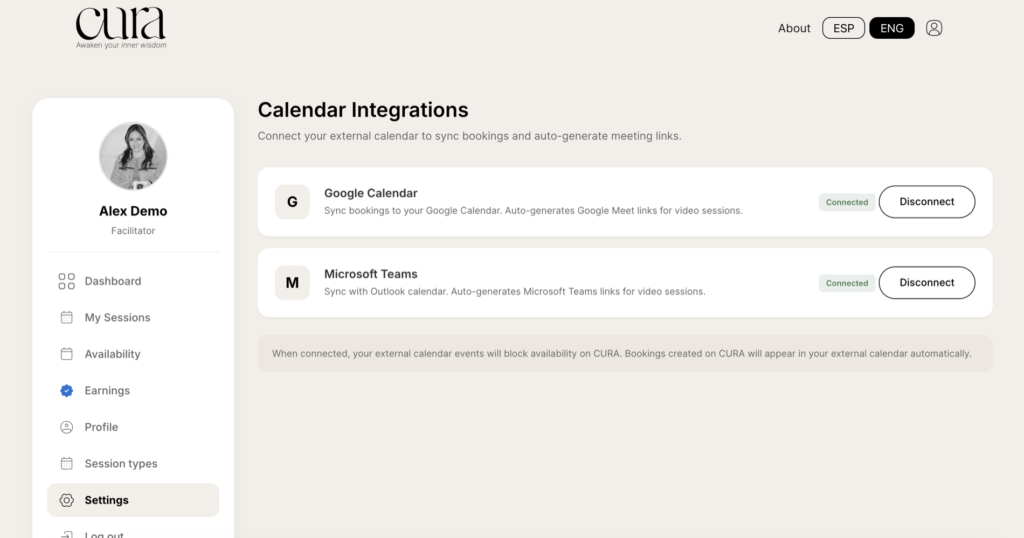
Connecting an external calendar to CURA gives you three things at once: auto-generated video meeting links, two-way sync, and protection against double-booking.
Why connect
- Meeting links are created for you. When a client books a session, CURA automatically creates a Google Meet (or Microsoft Teams) link and emails it to both of you. The same link powers the Join button in your dashboard.
- Bookings appear in your personal calendar. A new event is added to your Google or Outlook calendar with the client’s name, session type, time and meeting link.
- External events block CURA availability. If you have an event already on your personal calendar at, say, Friday 4pm, CURA will hide that slot from the booking calendar — even if your weekly hours include it.
Connect Google Calendar
From Settings, find the Google Calendar card and click Connect. You will be redirected to Google to choose your account.
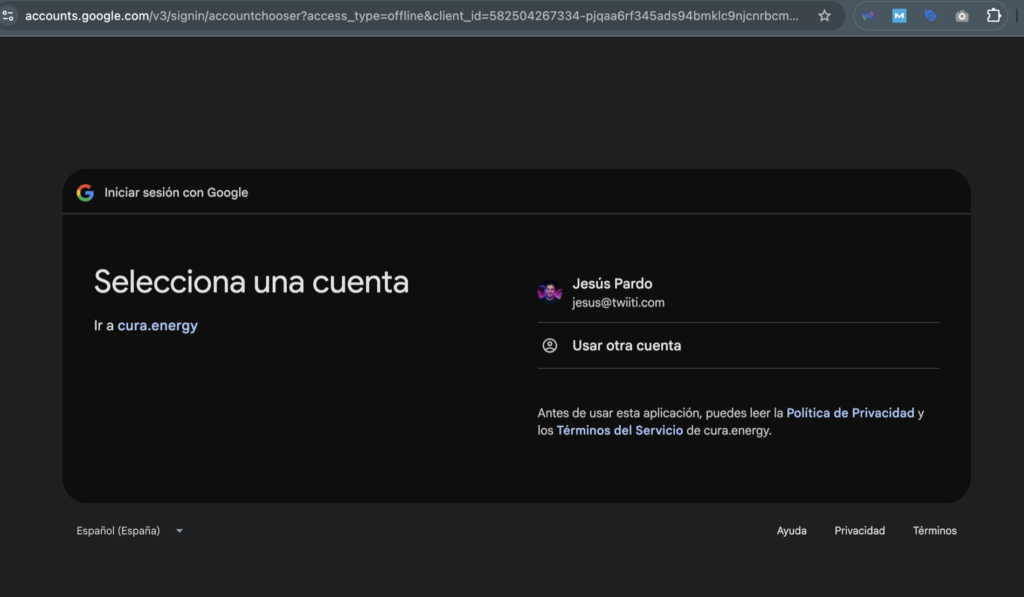
Pick the email you actually use for your calendar (the same one Google Meet links should be created with), and approve the requested permissions. You will be sent back to your Settings tab and the card will show Connected with a Disconnect button.
Connect Microsoft Teams
If you prefer Outlook + Teams, click Connect on the Microsoft Teams card and follow the same flow with your Microsoft account.
Disconnect
Click the Disconnect button on either card to revoke CURA’s access. Existing meeting links keep working, but new bookings will no longer create calendar events or auto-generate links.
Important
- Connect before publishing your session types — otherwise early bookings will not have a meeting link and the Join button will not appear.
- You can only have one Google account and one Microsoft account connected at a time.
- If you reconnect with a different account, future bookings use the new one. Past bookings keep their original meeting links.