
Facilitator Manual
Availability
Set the days and hours when clients can book you, plus one-off blocks for vacation or holidays.
Availability defines when clients can book sessions with you. CURA combines your weekly schedule, any date-specific overrides, and your connected calendar to show only truly free slots.
Step 1 — Choose your timezone
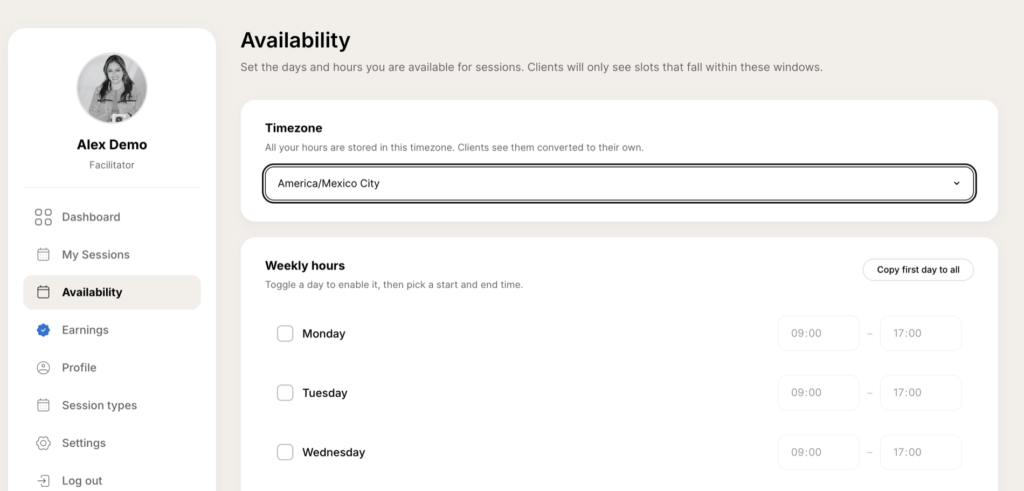
All your hours are stored in this timezone. Clients see them automatically converted to their own local time.
Pick the timezone where you actually offer sessions. Changing it later does not move past bookings.
Step 2 — Weekly hours
For each day of the week:
- Toggle the checkbox to enable that day.
- Pick a Start and End time. Clients can only book inside this window.
If most of your days share the same hours, set Monday first and use Copy first day to all. Then tweak the exceptions.
Click Save availability at the bottom right when you are done — changes do not apply until you save.
Step 3 — Date overrides
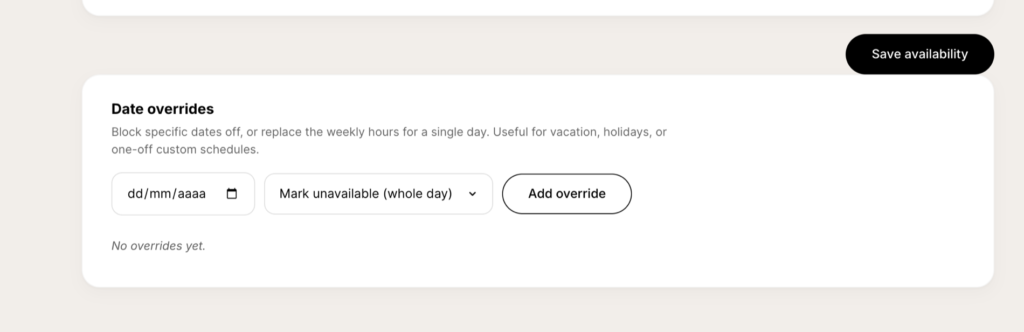
Use overrides to handle vacation, holidays or one-off custom schedules without touching your weekly grid.
- Block a whole day: pick the date, leave the action as Mark unavailable (whole day), then Add override.
- Replace the hours of one day: pick the date, change the action to Custom hours, set start and end, then Add override.
You can remove an override anytime from the list below — clients with bookings already inside that override are not affected.
What clients actually see
The booking calendar shows only slots that are inside your weekly hours, are not covered by an override, are not already booked, and are not blocked by your connected Google or Microsoft calendar.